How to Convert a Video Over 1GB When Every Online Tool Caps You
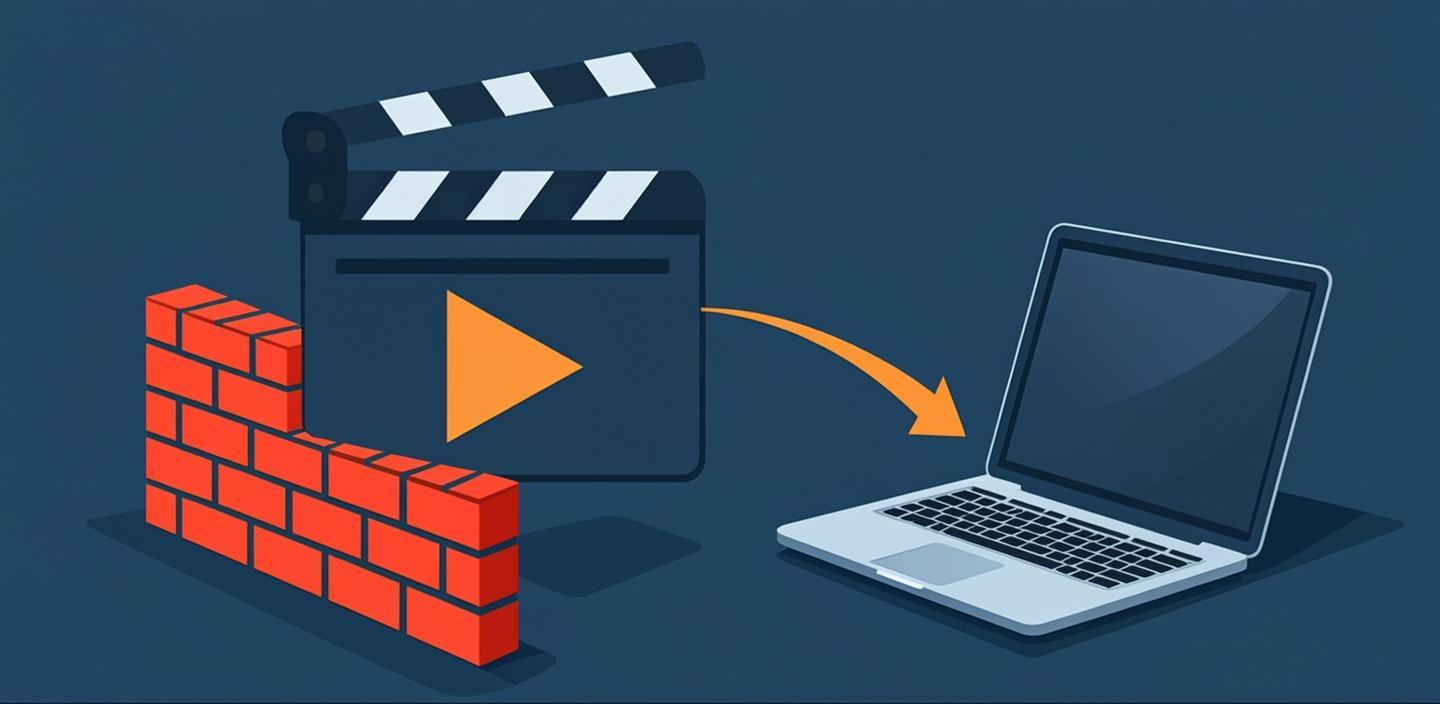
The 1 GB ceiling you keep hitting is not a video limit - it is an upload limit. Files past that size fail because a browser-based service has to pull your video onto its own server before a single frame gets converted, and that transfer is the expensive part to run for free. Cut the transfer out and the ceiling disappears: a file that stays on your machine can be remuxed in seconds or re-encoded several times faster than the video itself plays. Both routes are free, both run offline, and neither has a size cap, because nothing is being uploaded.
Where the 1 GB wall comes from
Checked on 20 October 2026, the mainstream free walls cluster at the same mark: FreeConvert caps uploads at 1 GB and 5 minutes per file inside a 20-minute daily allowance; CloudConvert allows 10 conversions a day with the same 1 GB file ceiling; Media.io stops at 512 MB and puts a watermark on the output. The full, priced list is in the free converter limits roundup. The numbers differ; the shape does not. Every one of those caps protects the same cost - your file landing on their disk, burning metered processing minutes, and travelling back.
That is also why the paid tiers raise the ceiling instead of removing it: 1.5 GB, then more, but the file still makes the round trip. A desktop tool has no round trip, so it has nothing to cap.
Which route fits your file
Pick by what is actually wrong with the file, not by how big it is. Big and fine beats small and wrong.
- Only the container is wrong. An MKV, MOV or AVI whose video and audio tracks are already H.264 and AAC - it just will not open in the app you need. Copy the streams into an MP4 wrapper without re-encoding:
ffmpeg -i input.mkv -c copy output.mp4
Nothing is decoded, so quality is bit-identical and the run takes seconds no matter the file size. The full walkthrough - including the subtitle track that silently disappears if you skip one flag - is in the MKV to MP4 remux guide.
- The codec or the bitrate is the problem. A ProRes master, a 4K H.264 export at camera bitrates, anything that stays huge even in the right container. This needs a real re-encode - and it is the job online tools lose twice, since you would upload 4 GB so that their server can run the same encode your laptop runs:
ffmpeg -i input.mov -c:v libx264 -crf 23 -preset medium -c:a aac output.mp4
CRF 23 with preset medium is the default-quality starting point: one number sets quality (lower is better, each step of 6 roughly halves or doubles the bitrate), and the encoder spends bits where the motion demands it instead of at one fixed rate.
- You want an interface, not a terminal. HandBrake is the free desktop answer, and its RF slider is the graphical twin of CRF. The honest caveat from a newcomer: "it's been such a tedious process" was the verdict after the first week of a simple MKV-to-MP4 job (r/handbrake) - the tool is deep and the preset list is where beginners get lost. VLC also converts without watermarks or time limits, as the short answer to one converter-hunting thread puts it: "No watermarks, no time limit" (r/windows). If big-file conversion is a recurring job and you would rather pay once than learn a queue system, a one-time-purchase desktop tool like Movavi's editor handles format changes with the same no-ceiling property.
Measured: what the local routes cost in time
Timings from a 53-second 1080×1920 clip (H.264 + AAC, 5 MB) through ffmpeg 9.0.1 on an Apple Silicon laptop, October 2026:
- Remux (
-c copy): 0.05 seconds. File length barely matters - the data is copied, not decoded. - Software re-encode (libx264, CRF 23, preset medium): 7.3× playback speed. The 53-second clip finished in about 8 seconds and came out 32% smaller than the source.
- Hardware encode (VideoToolbox at a fixed 1.5 Mbps target): 6.7× playback speed. Faster per watt, but a fixed bitrate can come out larger than a quality-targeted encode of the same clip - when output size matters, CRF is the dial to turn.
Scaled linearly - extrapolation, not a new measurement - a two-hour video re-encodes in roughly 17 minutes of laptop time at that rate, and remuxes in under a minute. Two gigabytes is not a large number to either route.
The arithmetic to run before uploading anything big
Upload time is the cost people forget to price. Moving 2 GB over a 20 Mbps uplink takes 2 × 8192 Mb ÷ 20 Mbps, about 14 minutes - before any queue, before processing, before the result travels back down. On a 10 Mbps uplink it is about 27 minutes just to hand the file over. The local re-encode of the same file lands in the same league of minutes - except the local job is also doing the actual conversion, starts the moment you press enter, and leaves the file where it is. There is a quiet second benefit: the footage never sits on someone else's disk, which is its own kind of cap removal.
One line per decision
- Under the caps and a one-off job: an online converter is fine - now you know exactly which walls you are inside.
- Container mismatch: remux. Seconds, bit-identical, no quality question to argue with.
- Codec or bitrate mismatch, comfortable in a terminal: libx264 at CRF 23.
- Same job without a terminal: HandBrake (free, steeper learning curve) or a one-time-purchase desktop converter.
- Recurring big files: desktop, always - the round trip is the thing you would be re-paying for every month.
If the file is staying local anyway and the goal is only a smaller file rather than a different container, the browser-based compressor on this site runs the same no-upload trick inside a tab. And if background removal is the next step after the format is settled, start from the main guide.
One container note before the handoff: if the converted file is headed somewhere that needs a see-through background, confirm the container actually carries alpha first - whether MP4 supports transparency is a no by default, and finding out at export time costs a second encode. If the export already came back with a black plate where the background should be, the black-background export diagnosis separates the three causes before you re-encode.
Disclosure: some links on this page are affiliate links; buying through them may earn this site a commission at no extra cost to you.