Compress a Video in Your Browser
Shrink an MP4, MOV, or WebM file with real H.264 re-encoding — no upload, no account, no watermark. The video is processed by your browser's own encoder and saved straight back to your device.
The compressor
Runs entirely in this tab — your file never leaves your device.
Checking your browser…
How to use it
- Pick the file you want to shrink. It is read locally — nothing is uploaded.
- Choose a preset. Medium is the right default for email, chat apps, and course platforms; Small when you need the file tiny; High when quality matters more than size.
- Press Compress, wait for the progress bar, preview the result, and download it.
How it works, and why there is no upload
Browsers have shipped a real video encoder since Chrome and Edge 94, Firefox 130, and Safari 16.4: WebCodecs, the same machinery those browsers use to record your camera and play streaming video. This page hands your file to that machinery directly. The bytes are decoded to raw frames, optionally scaled down for the preset you picked, and re-encoded as H.264 at the preset's quality target. AAC audio is re-encoded the same way, and the streams are muxed into an MP4 laid out for instant playback. At no point does a network request carry your video — the tool has no server component to send one to.
The presets exist because compression is a trade, not a trick. Every H.264 encoder decides frame by frame how many bytes to spend on each block of pixels: more bytes, fewer visible artifacts. Small, Medium, and High are three points on that curve, plus a resolution cap — 720p and 1080p — because downscaling a 4K screen recording is usually what saves the most bytes per unit of visible quality lost. That is also why a file that was already compressed hard for the web may barely shrink: the encoder cannot restore detail that an earlier export deleted, and re-spending bytes on detail-free blocks buys nothing.
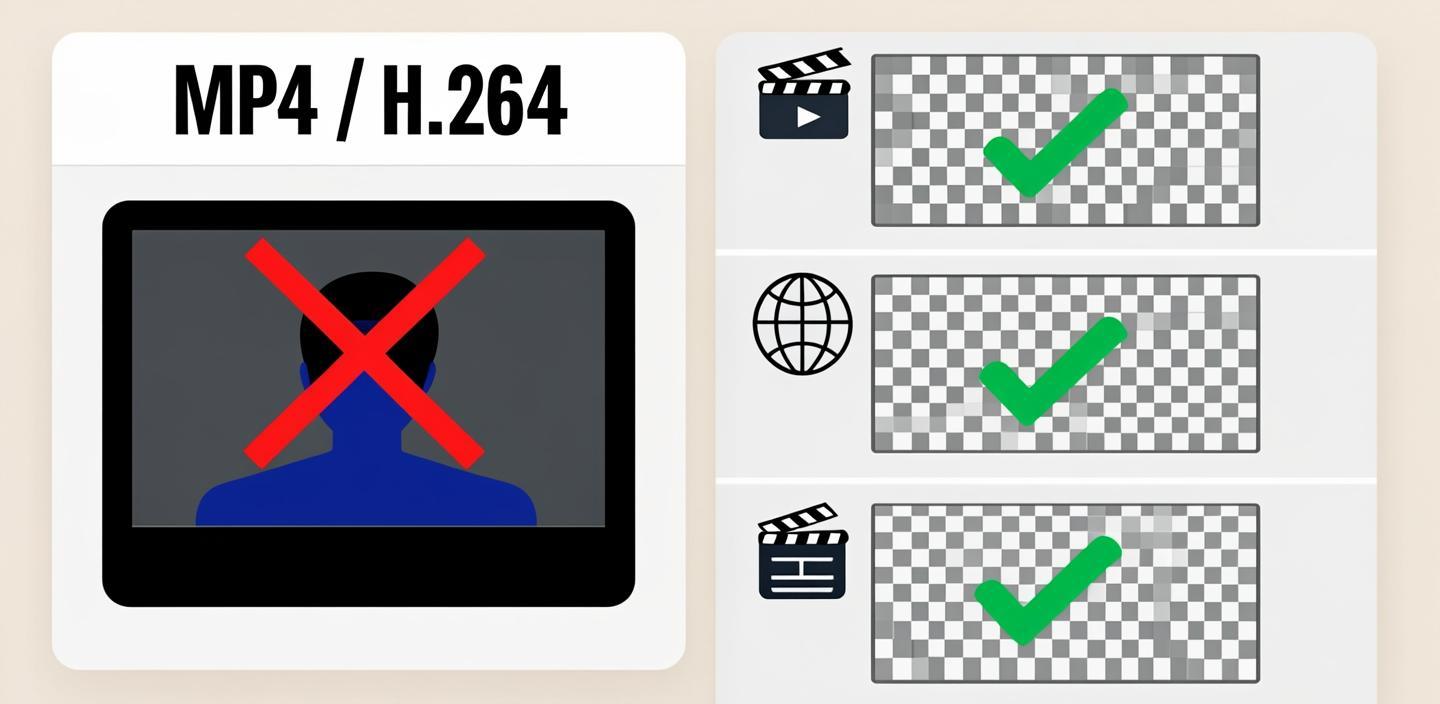
What compression does not change: duration, frame rate, aspect ratio, and audio language tracks. If you came here from our guide on why a transparent export turns black, note the same limit applies here — MP4 has nowhere to store transparency, so alpha channels are flattened.
Frequently asked questions
More browser tools
This compressor is the first entry in our browser tools collection — utilities that process your files on your own device.