How to Remove the Background from a Video on iPhone (Every Route That Works)
iPhone users have exactly three real routes, and picking wrong costs an afternoon. If your footage was shot on green or blue: iMovie - already on your phone, free - ships a built-in Green/Blue Screen effect, and that is the best-quality result you can get on-device. If there is no screen in the footage: CapCut's iOS editor does one-tap AI cutout, but that feature now sits behind the Pro subscription (the paywall landed in mid-2024 and has stayed). And the thing that looks like the obvious answer is not one: the Photos app's subject-lift - press and hold, and the subject pops out - is a photo feature; Apple's own guide describes it only for photo backgrounds, and video has no equivalent. Zero-budget fourth route: send the clip to any desktop and use the OBS-plus-Zoom trick.
iPhone users have exactly three real routes, and picking wrong costs an afternoon. Read the full answer
If your footage was shot on green or blue: iMovie - already on your phone, free - ships a built-in Green/Blue Screen effect, and that is the best-quality result you can get on-device. If there is no screen in the footage: CapCut's iOS editor does one-tap AI cutout, but that feature now sits behind the Pro subscription (the paywall landed in mid-2024 and has stayed). And the thing that looks like the obvious answer is not one: the Photos app's subject-lift - press and hold, and the subject pops out - is a photo feature; Apple's own guide describes it only for photo backgrounds, and video has no equivalent. Zero-budget fourth route: send the clip to any desktop and use the OBS-plus-Zoom trick.The Photos trap: subject-lift is photos-only
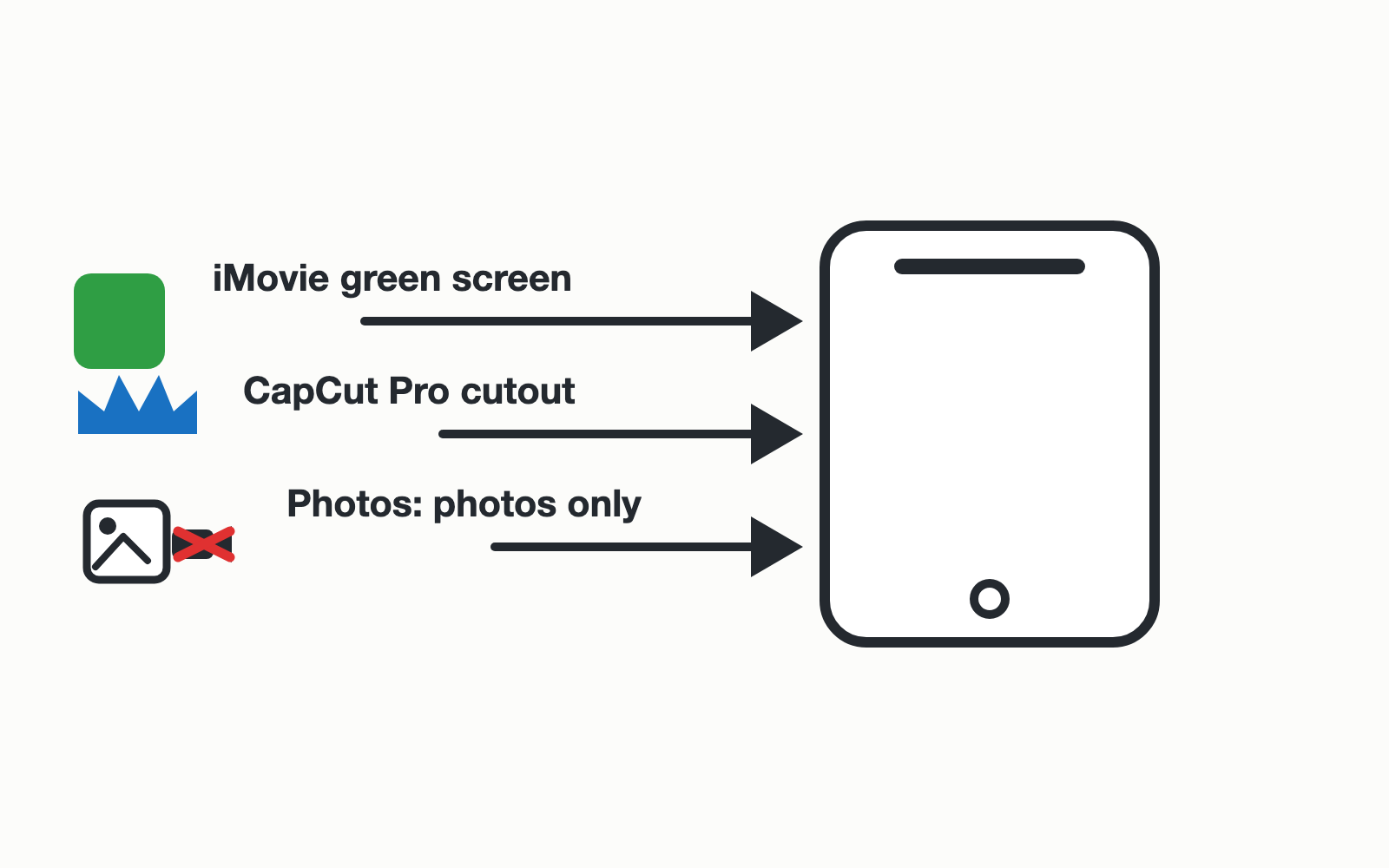
The confusion is understandable - iOS makes lifting a subject from a photo feel like magic, so people assume a video version is hiding somewhere in the same menu. Apple's support documentation titles the feature plainly ("lift a subject from the photo background") and describes photo backgrounds only; nothing in Photos removes a video's background, on any iOS version this site could verify. Every "just use the Photos app" shortcut for video ends at that wall. The routes below are the actual menu.
Route 1: iMovie's Green/Blue Screen (free, built in, needs a screen)
iMovie for iPhone has the real thing: an overlay-based green/blue screen keyer. Apple's documented flow runs backwards from what people try: the background goes in first - add your replacement background clip or still to the timeline and park the playhead over it. Then tap Add Media, select the green-screen clip, tap the More button, and choose Green/Blue Screen; the clip lands above the background in the timeline. In the viewer, tap Auto to remove the green or blue automatically, or tap a specific color to sample it directly; a Mask button trims corners where the frame edge shows. It is a genuine keyer - which also means it inherits the keyer's law: the result is only as good as the lighting on your screen (the green screen vs AI comparison covers when that trade is worth it). No screen in the footage? iMovie has nothing for you - there is no AI cutout in iMovie.
Route 2: CapCut's one-tap cutout (no screen needed, Pro-priced)
CapCut remains the phone-first answer when reshooting on green is not an option: import the background clip first, add your footage as an overlay, select it, and Cutout → Remove background does the segmentation for you - the full method overview walks the exact tap order. Two caveats survive from this site's earlier reporting: the feature is gated behind CapCut Pro on mobile (since July 2024, per the paywall investigation - the same subscription that took auto captions), and one-tap output inherits AI's known weaknesses - fine hair and fast motion degrade first, which is worth reading before you blame the phone. For clean subject-background separation on short clips, it is still the fastest path that exists on iOS.
Route 3: hand the clip to a desktop
Some jobs should leave the phone. The zero-budget option is the OBS-plus-Zoom route - feed the clip through a meeting app's segmentation and record the composite, limits-free but fiddly; the walkthrough lives in the main guide. If the work recurs, a desktop editor with AI removal plus a real timeline earns its cost: Movavi Video Editor runs its cutout straight on the clip, and Corel VideoStudio Ultimate carries a chroma keyer you own outright for green footage. AirDrop makes the handoff a ten-second errand.
Pick in twenty seconds
- Shot on green/blue → iMovie Green/Blue Screen; free, on the phone, best edges you can get on-device.
- No screen, short clip, subscribing anyway (or willing to) → CapCut Cutout.
- Tried to lift the subject in Photos and found nothing → that is correct behavior; video was never included.
- Long clip, client work, hair detail → AirDrop to desktop; no phone route survives that tier.
- Zero budget, zero subscription, any length → OBS + Zoom on any computer you can borrow.
Disclosure: some links on this page are affiliate links; buying through them may earn this site a commission at no extra cost to you.