How to Check Whether Your Video Really Has an Alpha Channel (Before You Ship It)
There are exactly three reliable ways to know whether your exported video carries real transparency, and none of them is a normal video player. Method one: open the file in a compositor or any editor with a transparent-capable timeline and look for the checkerboard behind your subject. Method two: put the video on a web page with a colored background behind it - if the color shows through, the alpha is real. Method three, the definitive one: run ffprobe on the file and read the pixel format - formats whose name contains an alpha component (yuva420p, argb and friends) carry the channel; plain yuv420p never does. Your default player is useless here because it draws black both for "no alpha" and for "alpha your player cannot render" - the two cases you most need to tell apart.
There are exactly three reliable ways to know whether your exported video carries real transparency, and none of them is a normal video player. Read the full answer
Method one: open the file in a compositor or any editor with a transparent-capable timeline and look for the checkerboard behind your subject. Method two: put the video on a web page with a colored background behind it - if the color shows through, the alpha is real. Method three, the definitive one: run ffprobe on the file and read the pixel format - formats whose name contains an alpha component (yuva420p, argb and friends) carry the channel; plain yuv420p never does. Your default player is useless here because it draws black both for "no alpha" and for "alpha your player cannot render" - the two cases you most need to tell apart.Method 1: the compositor's checkerboard
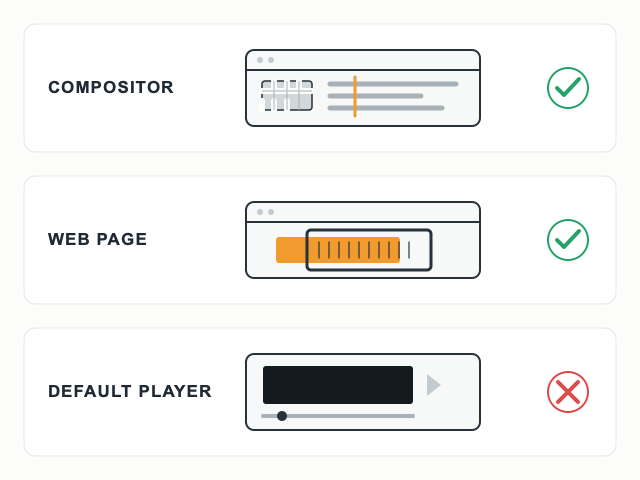
Drag the file onto a timeline in After Effects, or any editor that supports transparent tracks, and look at the program monitor: a genuine alpha channel shows the familiar gray checkerboard wherever the video is transparent. This is the fastest check and it doubles as a quality check - while you are there, look at the edges the checkerboard reveals. One caution: the compositor showing checkerboard for a preview inside the original project proves nothing; the check must run on the exported file you actually intend to ship, dropped into a fresh composition. That distinction is precisely where "looked fine in the editor, black on delivery" comes from (the black-background piece covers how exports lose the channel in the first place).
Method 2: the ten-line web page
For anything that will end up on the web, test in the environment it will ship to. Make a page with a loud, solid background color - a flat orange div is perfect - and a video element playing your file. If the orange shows through the video, transparency works in that browser; if you see black or white where transparency should be, it does not. This method verifies the full stack at once: file, format, and the browser's willingness to render alpha, which is exactly what method 3 cannot tell you. Keep the test page around; it takes ten seconds to re-run after any re-export.
Method 3: ffprobe reads the truth off the file
For a definitive answer that depends on no viewer at all, ask the file directly. FFprobe ships with the free FFmpeg toolkit, and one line reports the video stream's pixel format:
ffprobe -v error -select_streams v:0 -show_entries stream=pix_fmt -of csv=p=0 yourfile.mov
Read the output like this: a format whose name contains an alpha component - yuva420p, argb, rgba, pal8 with alpha - means the channel is physically present in the file. yuv420p and nv12, the everyday delivery formats, mean it is not, no matter what any application told you during export. This is the check to trust when players and previews disagree, because it reads the bytes rather than rendering an opinion about them.
The misdiagnoses this settles
- "My export is black - the tool broke it" → maybe; run ffprobe. If pix_fmt says yuva420p the file is fine and your player is the wrong judge.
- "The editor showed checkerboard, so the export must be fine" → no; the editor previews the project, not the file. Check the shipped artifact.
- "This web page shows black over my background" → the file may lack alpha, or that browser may not render alpha in that format; test the same file with method 3 to split the blame.
- "I removed the background, so it is transparent now" → removal happens inside the editor; shipping transparency is a separate export decision (formats and settings).
Pick in twenty seconds
- Five-second answer, desktop at hand → drop the file in a compositor, look for checkerboard.
- Delivering to a web page → build the flat-color test page and watch for show-through.
- Players disagree, or you need certainty → ffprobe pix_fmt; the file cannot lie.
- Sharing the file with a client or teammate → send it with the test page attached; it answers their player question before it becomes an email thread.
Disclosure: some links on this page are affiliate links; buying through them may earn this site a commission at no extra cost to you.